
IBA messenger: how to install, sign in and start chatting
IBA messenger puts private chats, groups and channels, calls, push-to-talk radio and task boards in one app. This guide takes you from the download to your first message.
The screens in the pictures are a demo: names, e-mail and conversations are made up. The app is in Russian only, so the buttons are quoted in Russian with a translation. The pictures were taken on a phone; on a computer (Windows, macOS) the sections and buttons are the same.
Step 1. Download the app
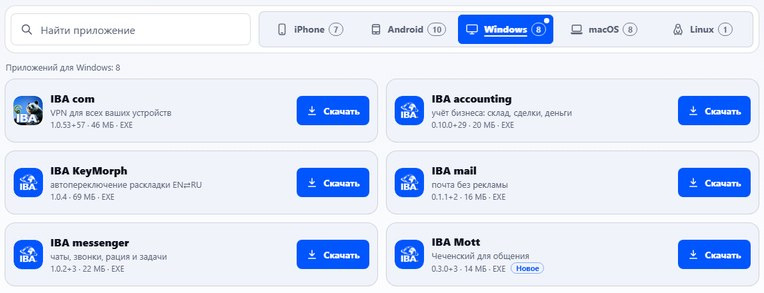
- Open store.ibateam.org and choose your platform: iPhone, Android, Windows, macOS or Linux.
- Find “IBA messenger” in the list (“чаты, звонки, рация и задачи” — chats, calls, radio and tasks) and press “Скачать” (Download). Android, Windows and macOS need no sign-in or subscription.
Step 2. Install it
- Android. Open the downloaded APK file and allow installs from your browser if the phone asks. See how to install an app on Android without Google Play. Later the app updates itself: it offers the new version and asks once for permission to install updates.
- Windows. Run the downloaded file. If Windows shows “Windows protected your PC”, choose “More info” → “Run anyway” — the file comes from the official site. Windows 10 or 11, 64-bit, is required.
- macOS and iPhone. Open the downloaded file or the app’s page in the store and follow the hints there; the available platforms depend on the release.
Step 3. Sign up or sign in
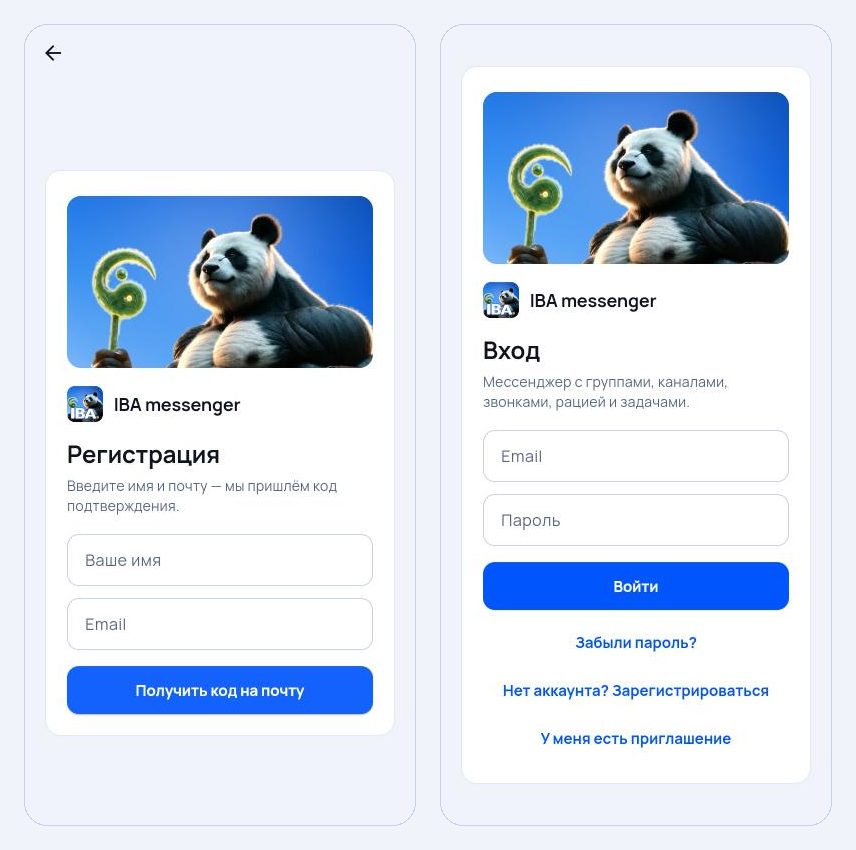
If you have no account yet, press “Нет аккаунта? Зарегистрироваться” (No account? Sign up) on the sign-in screen:
- Enter your name (how others will see you) and e-mail, then press “Получить код на почту” (Get a code by e-mail).
- Enter the six-digit code from the e-mail, make up a password (at least 8 characters) and press “Зарегистрироваться” (Sign up).
- If you were invited with a link or a code, choose “У меня есть приглашение” (I have an invitation) on the sign-in screen.
If the server confirms new people by hand, the “Заявка отправлена” (Request sent) screen appears: when an administrator approves it, press “Проверить снова” (Check again) and the messenger opens. If you forgot your password, press “Забыли пароль?” (Forgot your password?) and a code is sent by e-mail. One account works on all your devices and in the web version at messenger.ibateam.org.
Step 4. Find someone and start a chat
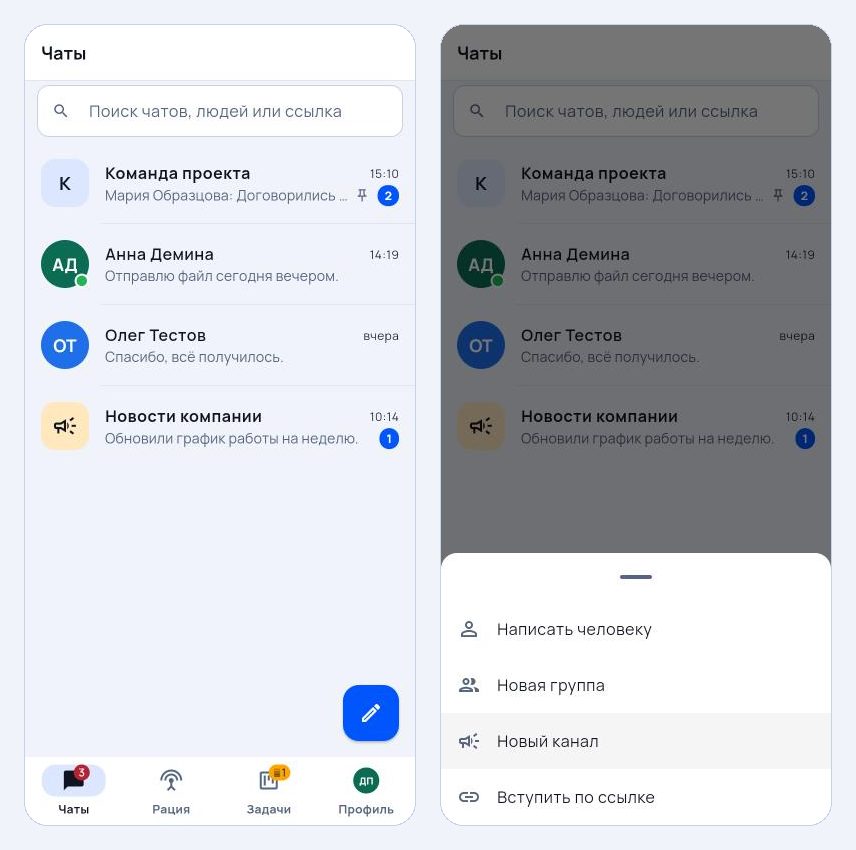
After you sign in, the “Чаты” (Chats) section opens. The search field at the top takes a name, an @username, a full e-mail or an invitation link. The pencil button at the bottom right opens a menu:
- “Написать человеку” (Message a person) — a private chat;
- “Новая группа” (New group) — everyone can write;
- “Новый канал” (New channel) — the owner and appointed administrators publish, others read and react;
- “Вступить по ссылке” (Join by link) — for invitations to a group or channel.
A pinned chat stays at the top of the list; the number in a circle is the count of unread messages.
Step 5. Send a message
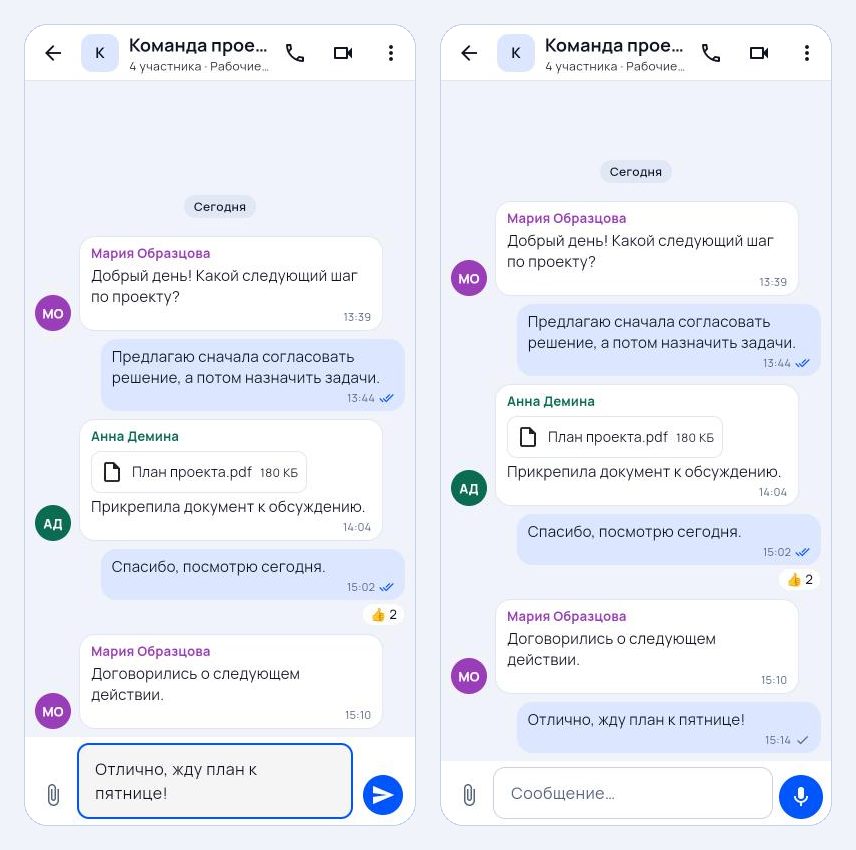
- Open a chat and type your text in the “Сообщение…” (Message…) field.
- Press the send button. The paperclip on the left attaches files (up to 20 MB, up to 5 per message); when the field is empty, the button is a microphone — hold it to record a voice message (up to 10 minutes).
- The ticks show the message’s progress: one — sent, two grey — delivered, two coloured — read.
- Press and hold a message to open its actions: reply, react, forward, pin, and edit or delete your own messages.
- The phone and camera icons in the chat header start an audio or a video call.
Chat settings
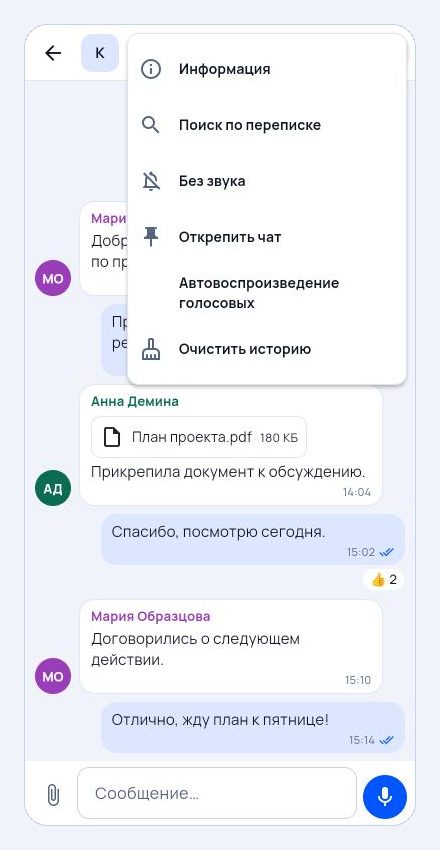
The three dots in the chat header open a menu: “Информация” (Info — members, description), “Поиск по переписке” (Search the conversation), “Без звука” (Mute), “Закрепить чат вверху” (Pin to the top), “Автовоспроизведение голосовых” (Autoplay voice messages) and “Очистить историю” (Clear history — only for you; others keep it).
Radio and tasks
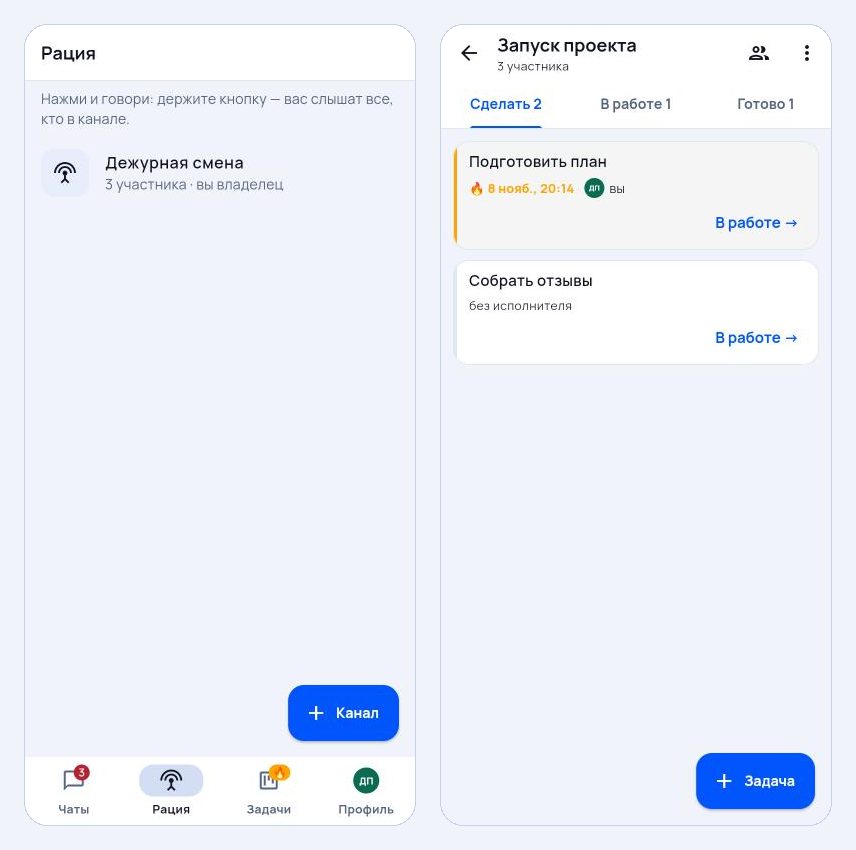
Four sections sit at the bottom of the screen: “Чаты” (Chats), “Рация” (Radio), “Задачи” (Tasks) and “Профиль” (Profile).
- Radio — separate push-to-talk channels, not tied to chats. Open a channel and hold the big button: everyone in the channel hears you. One person talks while the others wait. Create a channel with the “Канал” (Channel) button.
- Tasks — boards with the columns “Сделать” (To do), “В работе” (In progress) and “Готово” (Done). A card has an assignee and a due date; a flame icon means less than a day is left or the date has passed. The arrow on a card moves it to the next column, “Задача” (Task) creates a new one.
Profile and settings
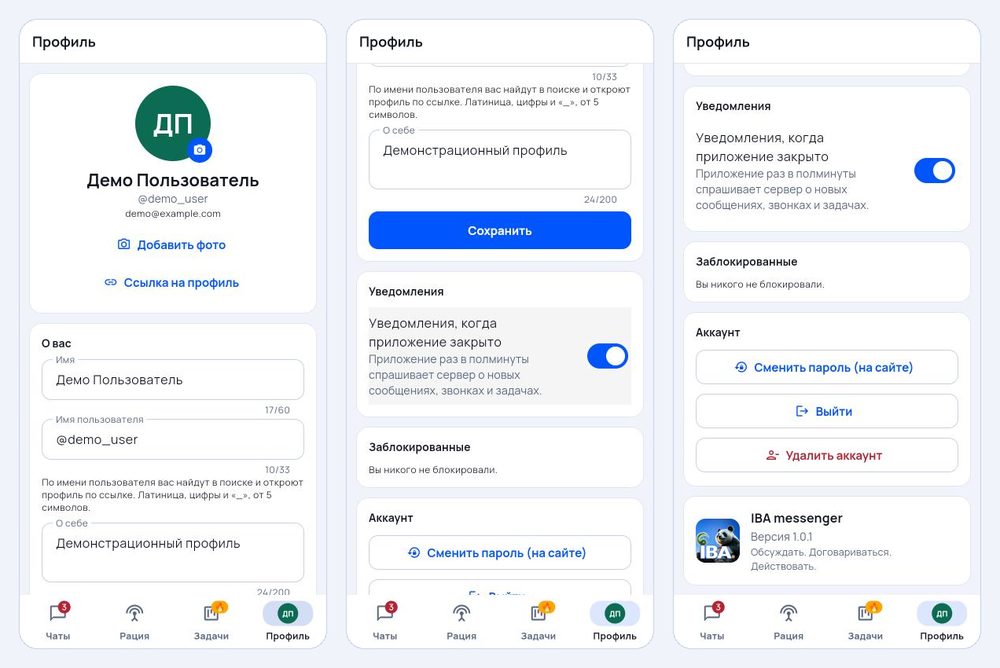
The “Профиль” (Profile) section holds everything personal:
- photo, name, @username and “О себе” (About me) — change them and press “Сохранить” (Save); people find you by your @username;
- “Уведомления, когда приложение закрыто” (Notifications when the app is closed) — a switch on Android; on a computer and on iPhone new messages show while the app is open;
- “Заблокированные” (Blocked) — the people you blocked, with a “Разблокировать” (Remove from the blocked list) button;
- “Аккаунт” (Account): “Сменить пароль (на сайте)” (Change password, on the site), “Выйти” (Sign out), “Удалить аккаунт” (Delete account);
- at the bottom — the About card with the version number.
The light and dark themes follow the system setting.
If something went wrong
- The e-mail with the code does not arrive — check the Spam folder and the address, then request the code again.
- The “Нет связи с сервером” (No connection to the server) screen — check your internet and press “Повторить” (Retry).
- Still stuck — write to support on store.ibateam.org (the “Поддержка” button).
Messages travel over a secure connection and are stored on the IBA server in encrypted form, but there is no end-to-end encryption: the server decrypts messages.