
IBA KeyMorph keyboard layout switcher: install and set up
Typed “ghbdtn” instead of “привет”? IBA KeyMorph is a keyboard layout switcher for Windows and macOS: it notices the mistake when you press space, erases the word and types it again in the right layout. It works on your computer, without the network.
What IBA KeyMorph does
IBA KeyMorph watches the word you are typing. When the word is finished (you press space, Enter or Tab) and looks like text typed in the other layout, the app replaces it and switches the layout so you can keep typing without mistakes:
ghbdtn→ “привет”;руддщ→ “hello”;Ghbdtn? rfr ltkf&→ “Привет, как дела?” — capital letters and punctuation are kept.
The EN and RU layouts are supported. Keystrokes are not saved or sent anywhere: only the current and the previous word are kept in memory.
Step 1. Install the app
Download IBA KeyMorph for your system at store.ibateam.org.
Windows 10 and 11. There are two options: an installer (the …-setup.exe file) and a portable one-file version. The installer does not need administrator rights: it installs the app for your account, adds a Start menu shortcut and, if you want, starts the app when you sign in to Windows. Separate builds are available for ARM laptops.
macOS 13 and later. Unpack the archive and move “IBA KeyMorph” to the Applications folder. On first launch macOS may say it cannot verify the app: open System Settings → Privacy & Security and click “Open Anyway”.
Step 2. First launch
Windows. After launch an icon appears in the notification area next to the clock, together with the message “IBA KeyMorph is running”. If you do not see the icon, click the “Show hidden icons” arrow. The icon shows the current layout:

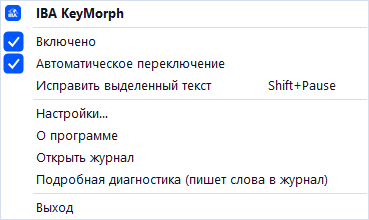
Right-click the icon to open the menu, or double-click it to open the settings.
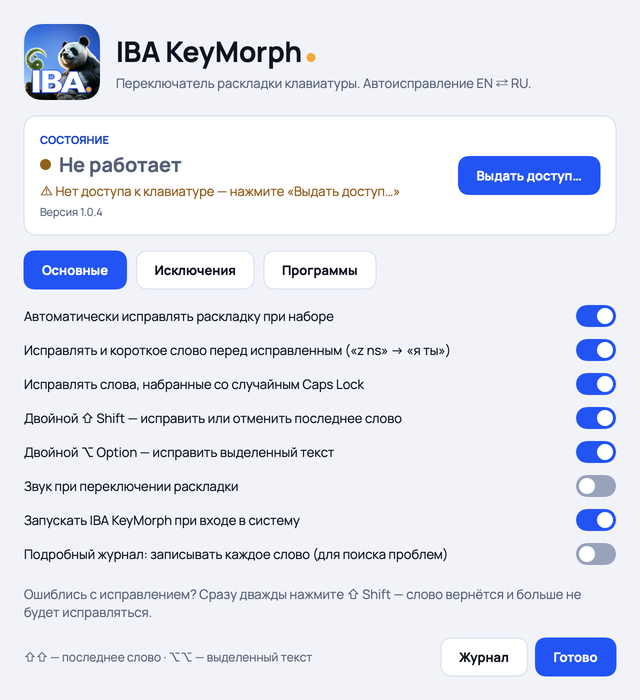
macOS. The app lives in the menu bar (the label EN or RU); it has no window and no Dock icon. To see your keystrokes and type corrections it needs access: click “Grant access…” and turn on the switch for IBA KeyMorph in Accessibility. You do not need to restart the app. A “⚠︎” next to the menu bar label means access has not been granted yet. After an app update, grant access again: click “Grant access…” once more and turn the switch on.
How automatic correction works
- Type as usual. If you typed a word in the wrong layout, press space, Enter or Tab.
- IBA KeyMorph compares the typed word with its version in the other layout, using dictionaries and a language model. Words found in a dictionary are left alone; correction starts from two letters.
- If the other-layout version is clearly more plausible, the word is erased and typed again, and the layout is switched.
Also: a short word before the corrected one is fixed too (“z ns” → “я ты”), and a word typed with Caps Lock on by accident (“пРИВЕТ”) becomes “Привет” and Caps Lock is turned off.
The app stays out of password fields, macOS secure input and (on Windows) windows running as administrator. This is so it does not disturb input where mistakes are not acceptable.
If you do not want the correction
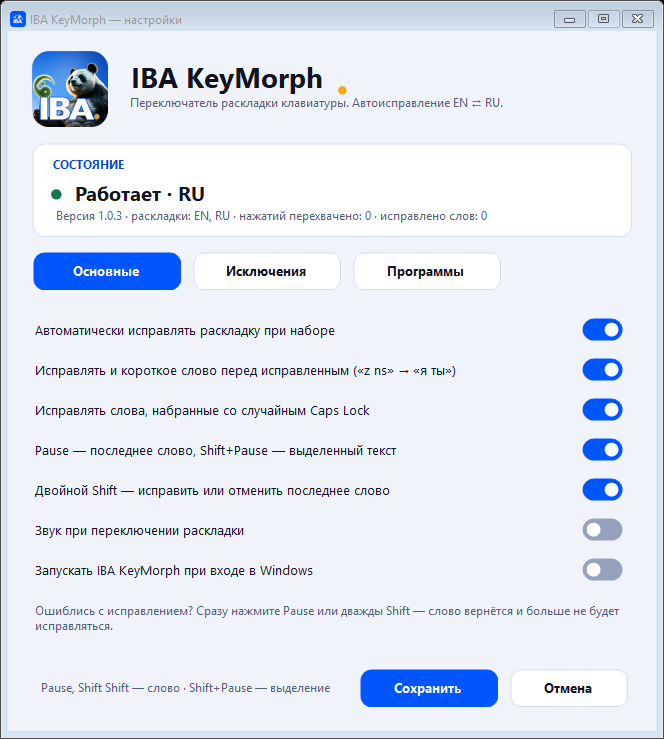
Right after a wrong correction press Pause or double-press Shift (on a Mac, double-press ⇧). The word returns to what you typed and is added to the exceptions list: the app will not touch it again.
Hotkeys
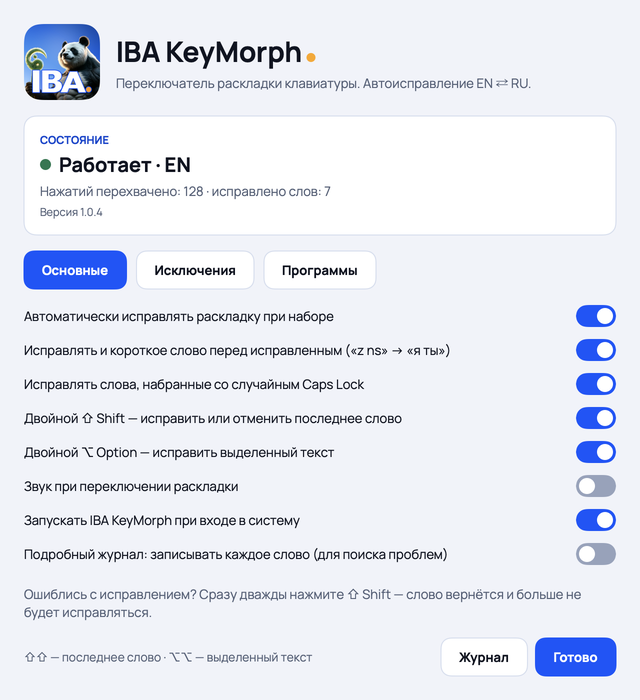
- Fix the last word or undo the correction: Windows — Pause or double Shift; macOS — double ⇧.
- Fix the selected text: Windows — Shift+Pause; macOS — double ⌥. The clipboard contents are saved and restored.
- Open the settings: Windows — double-click the tray icon; macOS — the menu bar menu → “Settings…”.
“Double Shift” means two quick presses of the key with no other key in between. If your laptop keyboard has no Pause key, use double Shift.
Settings
The General tab turns individual features on and off: automatic correction, fixing the short word before, protection from accidental Caps Lock, hotkeys, the switching sound and start with the system. Changes take effect after you click Save.
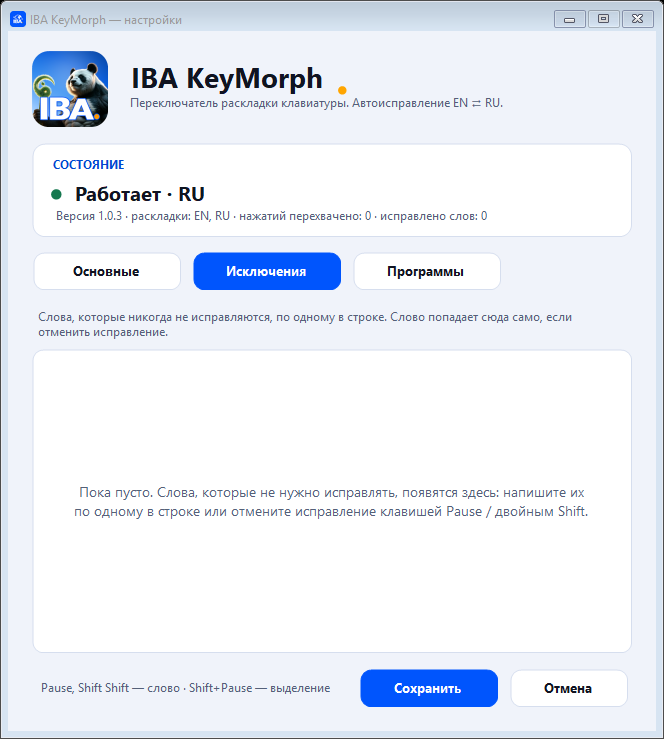
The Exceptions tab holds the words that are never corrected, one per line. A word gets there by itself when you undo a correction, and you can add to or clear the list by hand.
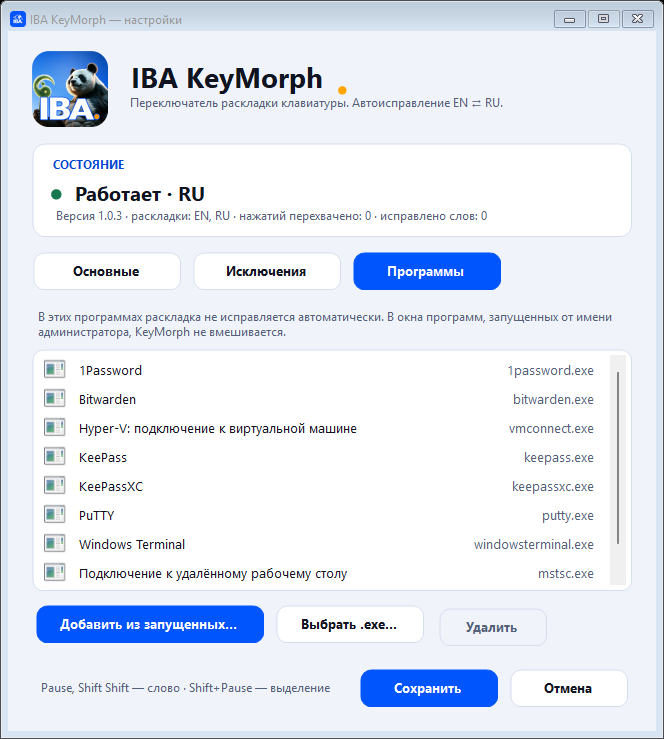
The Programs tab lists the programs where automatic correction is off: terminals, password managers, remote desktop. You can change the list: add open programs or pick an .exe file (on a Mac, an application), and remove lines with the Remove button or the Delete key.
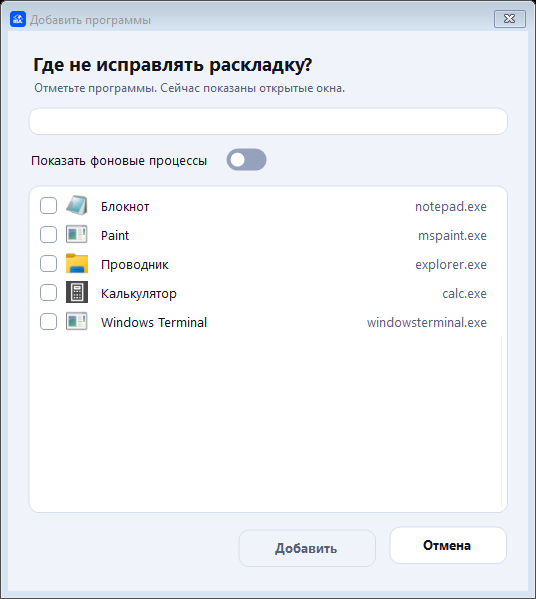
The “Add from running…” button opens a searchable list of open programs. Tick the ones you need and click Add.
About and the log
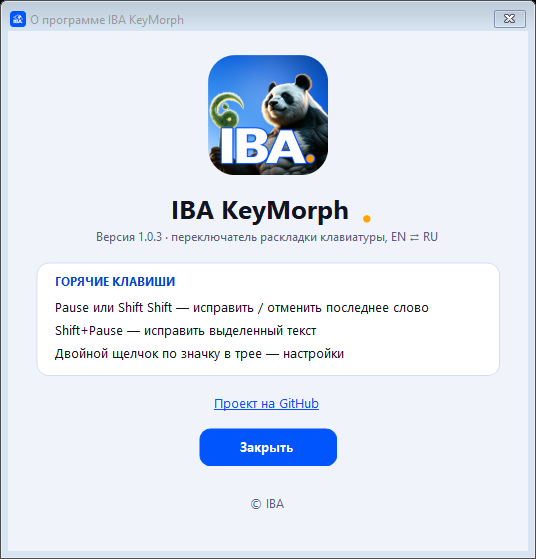
The “About” menu item shows the version and reminds you of the hotkeys. If something does not work, choose “Open log” in the tray menu: the keymorph.log file is in %APPDATA%\IBA\KeyMorph (on a Mac, ~/Library/Logs/IBA KeyMorph).
“Detailed diagnostics” writes every typed word to the log. Turn it on only while you look for a problem, do not share such a log with other people, and turn it off afterwards.
If it does not work
- Check that “Enabled” and “Automatic switching” are ticked in the tray menu and that automatic correction is on in the General tab.
- Automatic correction needs both layouts, EN and RU, installed in the system. If one is missing, the settings window shows a warning.
- In windows running as administrator (Windows) and in password fields the app deliberately does nothing. If you need it, run IBA KeyMorph as administrator.
- The program may be in the exceptions list: check the Programs tab.
- On a Mac, check access in Accessibility and click “Grant access…” if after an update the switch looks on but the app does nothing.
The latest versions for Windows and macOS are always at store.ibateam.org.